
FEATURES AND CONTROLS
OVERVIEW
Image is for reference only. Your model might differ slightly.
NOTICE
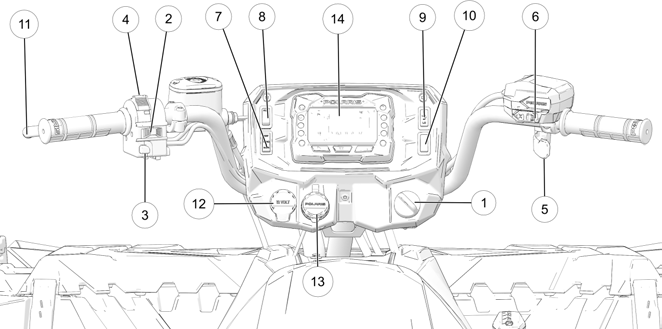
q Ignition Switch
w Engine Stop Switch
e Mode/Reverse Override Switch
r Headlight Switch
t Throttle Lever
y Driveline Switch
u Drive Mode Switch (if equipped)
i Auxiliary Switch (if equipped)
o Thumb Warmer Switch (if equipped) a Hand Warmer Switch (if equipped) s Brake Lever
d Auxiliary Outlet
f Battery Charge Port
g Digital Display
IGNITION SWITCH
Use the ignition switch q to start the engine. The key can be removed from the switch when it is in the OFF position.
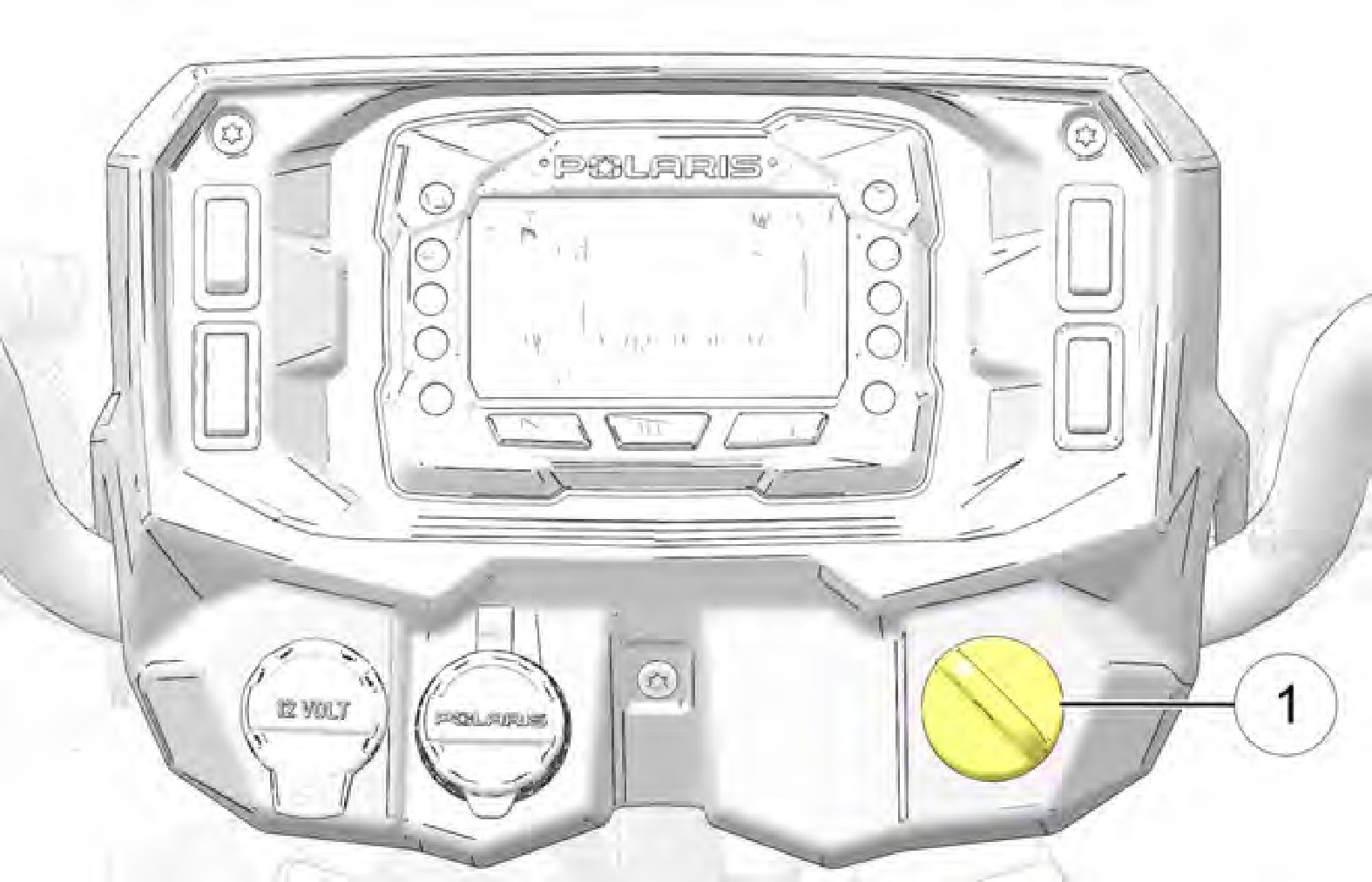
Image is for reference only. Your model might differ slightly.
NOTICE
|
SWITCH POSITION |
FUNCTION |
|
OFF |
Turn the key to the OFF position to stop the engine. Electrical circuits are off. |
|
RUN |
Turn the key the RUN position to activate electrical components. Electrical circuits are on. Electrical equipment can be used. |
|
START |
Turn the key to the START position to engage the electric starter. See the Starting the Engine section for starting procedures. |
LEFT-HAND CONTROL
ENGINE STOP SWITCH
Move the stop switch w either left or right to the OFF position to stop the engine quickly.
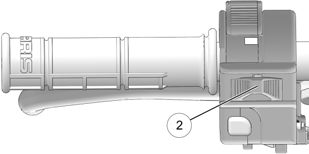 Move the stop switch to the RUN position before attempting to start the engine. The engine will not start or run when the switch is off. Both the main switch and the engine stop switch will shut off all electrical power to the vehicle, including lights.
MODE/REVERSE OVERRIDE SWITCH

Pressing the override button while the throttle is open can cause loss of control, which may result in serious injury or death. Always release the throttle before pressing the override button.
WARNING
This vehicle is equipped with a reverse speed limiter system. To gain additional wheel speed while backing, release the throttle and press the override button e.
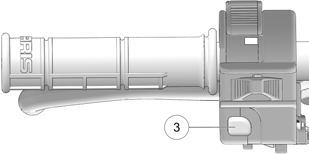 The reverse override button also acts as a MODE button for the digital display when held down for approximately one half second. The override button will not function as a MODE button if the transmission is in reverse.
HEADLIGHT SWITCH
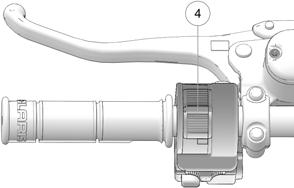 Use the headlight switch to turn the lights on and off and to change the lights from high beam to low beam. The key must be in the ON position and the engine stop switch must be in the RUN position.
RIGHT-HAND CONTROL
THROTTLE LEVER

Operating an ATV with sticking or improperly operating throttle controls could cause an accident. Never start or operate an ATV that has a sticking or improperly operating throttle. Immediately contact your POLARIS dealer or other qualified person for service if throttle problems arise.
Failure to check or maintain proper operation of the throttle system can result in an accident if the throttle lever sticks during operation. Always check the lever for free movement and return before starting the engine. Also check occasionally during operation.
Modifications to the electronic throttle control could result in failure to perform as designed, which could result in an accident. Do not attempt to modify the throttle control system or replace it with any after market throttle mechanisms.
WARNING
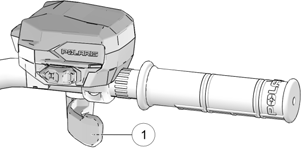 Engine speed and vehicle movement are controlled by pressing the throttle lever q. The throttle lever is spring loaded. Engine speed returns to idle when the lever is released.
DRIVELINE SWITCH
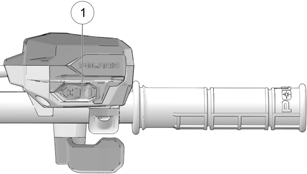 The All Wheel Drive (AWD) system is controlled by the AWD Momentary Switch q. Use this switch to change the driveline modes between 2×4, AWD, and ADC. The vehicle automatically engages AWD when operating in reverse if the driveline mode is set to AWD.
DRIVE MODE SWITCH (IF EQUIPPED)
The Drive Mode Switch has three positions:
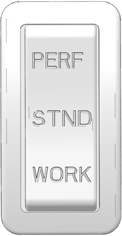 Performance (PERF)
- Standard (STND)
- Work (WORK)
Always use low gear for any of the following conditions regardless of the selected throttle control setting.
- Operating in rough terrain or over obstacles.
- Loading the vehicle onto a trailer.
- Towing heavy loads.
- Driving frequently at low RPM or at ground speeds below 7 MPH (11 km/h).
PERFORMANCE MODE
Offers a more aggressive feel to the power of the vehicle. Vehicle will accelerate harder with less throttle movement.
WORK MODE
Throttle is smoother than standard mode. Best for when the operator wants more precision over vehicle acceleration. This drive mode is recommended to be used when backing up with a trailer, driving over rough terrain, or loading vehicle on a trailer.
STANDARD MODE
Use for majority of driving.
BRAKE SYSTEM
BRAKE LEVER

Operating the ATV with a spongy brake lever can result in loss of braking, which could cause an accident. Never operate the ATV with a spongy-feeling brake lever. Always contact your dealer for service before operating the vehicle.
WARNING
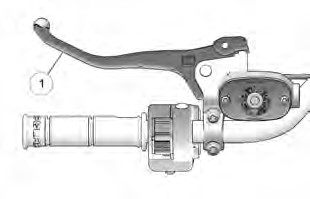 Squeeze the brake lever q toward the handlebar to apply the front and rear brakes. These brakes are hydraulically activated disc type brakes that are activated by only one lever. Always test brake lever travel and master cylinder fluid level before riding. When squeezed, the lever should feel firm.
Any sponginess would indicate a possible fluid leak or low master cylinder fluid level, which must be corrected before riding.
Contact your POLARIS dealer or other qualified service facility for proper diagnosis and repairs.
The hand brake lever controls both the front and rear brakes. Always squeeze the hand brake whenever using the auxiliary foot brake.
NOTICE
MASTER CYLINDER / BRAKE FLUID

An over-full master cylinder may cause brake drag or brake lock-up, which could result in an accident. Maintain brake fluid at the recommended level. Do not overfill.
Never store or use a partial bottle of brake fluid. Brake fluid is hygroscopic, meaning it rapidly absorbs moisture from the air. The moisture causes the boiling temperature of the brake fluid to drop, which can lead to early brake fade and the possibility of brake failure, which could result in an accident. After opening a bottle of brake fluid, always discard any unused portion.
WARNING
Check the brake fluid in the master cylinder before each ride.
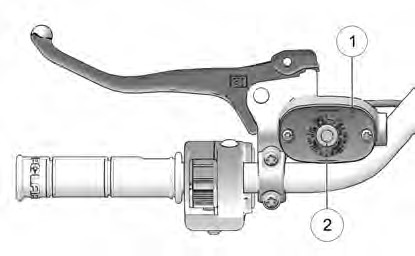 Position the ATV on a level surface.
- Position the handlebars so the master cylinder q is level.
- View the brake fluid level through the indicator window w on the top of the master cylinder. The eye will appear dark when the fluid level is full. When fluid is low, the eye will be clear.
- If the fluid level is low, remove the cover screws and add fluid to the fill line.
Do not overfill. Use DOT 4 brake fluid only.
- Reinstall the cover. Torque the screws to specification.
Brake Fluid Reservoir Cover Screws:
7 in-lbs (1 N·m)
TORQUE
Always properly break in the brake system of a new ATV or newly-installed brake pads. See the Operation chapter for more information about brake system break-in procedure.
IMPORTANT
TEMPORARY BRAKE LOCK

Operating the ATV while the temporary brake lock is engaged could result in an accident or fire. Always make sure the lock is disengaged before operating.
WARNING
To engage the temporary brake lock, do the following:
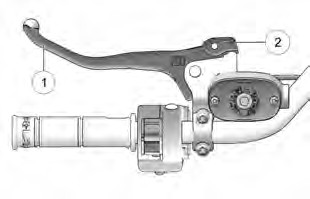 Place the transmission in PARK.
- Squeeze and release the brake lever q two or three times, then squeeze and hold.
- Push the temporary brake lock w
forward to engage the lock.
- Release the brake lever.
- To release the temporary brake lock, squeeze and release the brake lever. It will return to its unlocked position.

The temporary brake lock may relax if left on for a long period of time. Always block the wheels to prevent rolling. Always block the wheels on the downhill side of the ATV if leaving it parked on a hill. Another option is to park the ATV in a sidehill position. Never depend on the temporary brake lock alone if the ATV is parked on a hill.
WARNING
AUXILIARY FOOT BRAKE

Never back down a hill. Applying the auxiliary brake when backing down a hill may cause tipover, which could result in serious injury or death.
Use caution when applying the auxiliary brake. Do not aggressively apply the auxiliary brake when going forward. The rear wheels may skid and slide sideways, causing loss of control and serious injury or death.
WARNING
The auxiliary brake system is intended to be used as a backup for the main brake system. Should the main system fail, use the auxiliary foot brake q. The foot brake applies brake pressure to the rear wheels. If using the foot brake, squeeze the hand brake simultaneously to prevent tipover.
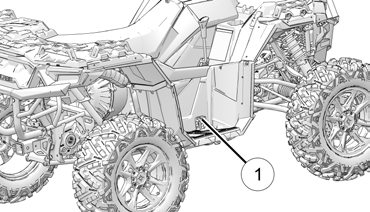 The auxiliary foot brake is located on the inside of the right footrest. Operate this brake with your right foot.
If the rear wheels slide while using the auxiliary brake, reduce brake pedal pressure to brake the rear wheels without skidding.
Operating a new vehicle or a vehicle with new brake pads requires a break-in period to prevent brake pad or rotor damage. For brake system break-in information, see the Operation chapter.
NOTICE
Check the brake fluid level frequently for the auxiliary brake system. The reservoir is located under the front storage box.
Maintain the fluid level between the maximum and minimum marks. Use DOT 4 brake fluid only.
FUEL CAP
This vehicle is equipped with a digital fuel gauge that will indicate a low fuel condition. Refuel when the gauge indicates a low fuel condition.
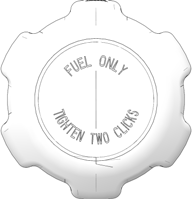 Always refuel with the engine stopped, and outdoors or in a well ventilated area. Refuel on a level surface.
Remove the fuel cap to add fuel to the fuel tank. Use unleaded gasoline with a minimum 87 octane rating (R+M)/2 or 91 RON minimum. Do not use fuel with ethanol content greater than 10 percent, such as E-85 fuel.
ELECTRONIC POWER STEERING (EPS)
Electronic power steering (EPS), if equipped, engages when the ignition key is turned to the ON position. EPS remains engaged whether the vehicle is moving or idle. See the Instrument Cluster section for EPS Warning Indicator information.
Never switch EPS modes while the vehicle is in motion. Ensure the vehicle is fully stopped and no force is applied to the steering system before switching EPS modes.
NOTICE
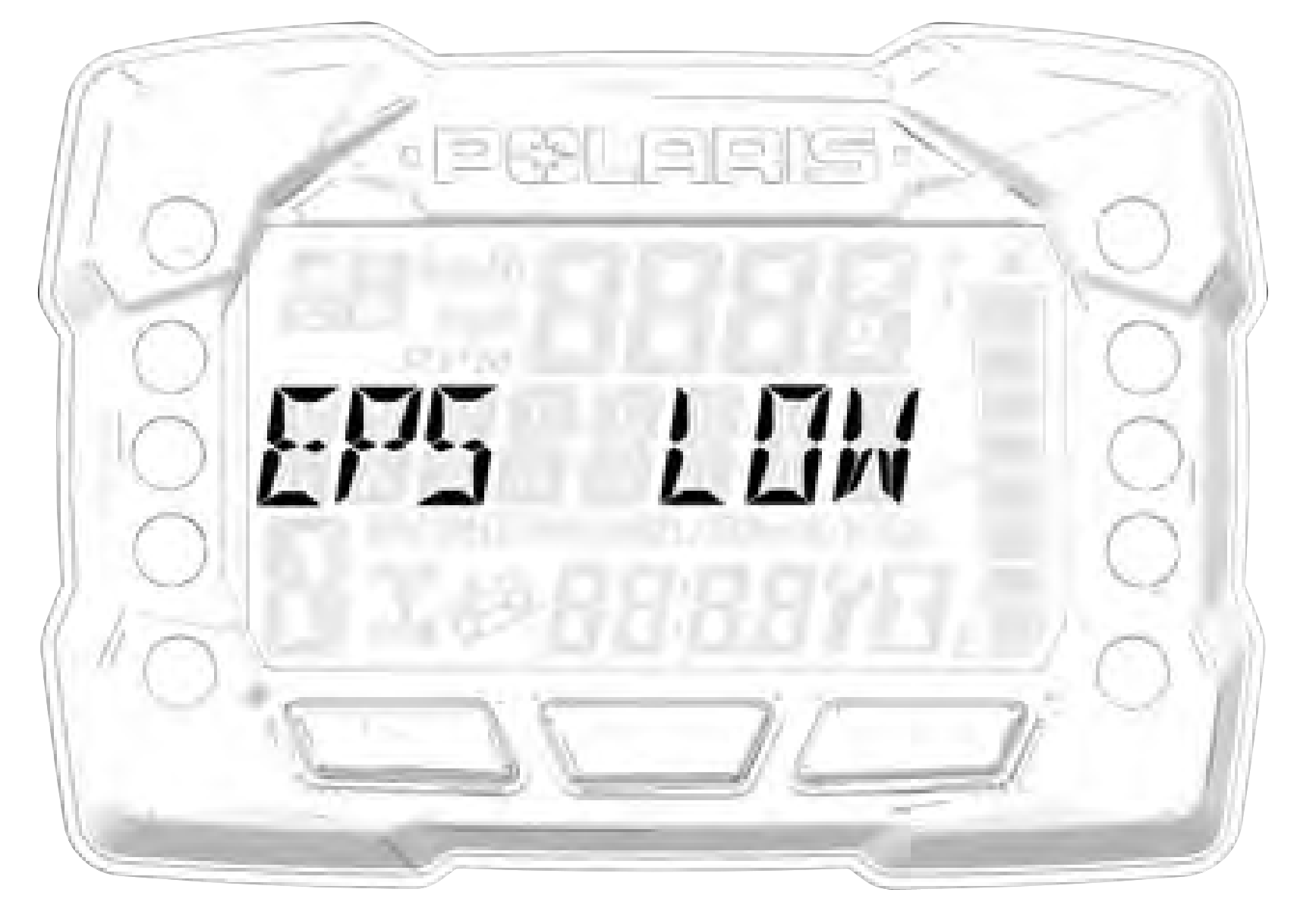 EPS has three modes: high, medium, low. To set the EPS mode, do the following.
- Stop the ATV and put it in PARK.
- Press and hold the MODE button to enter the Options Menu. “OPTIONS” will display on the screen for 3 seconds before showing the first menu item.
- Select “EPS” from the Options Menu by pressing the MODE button.
- Toggle the Up/Down Buttons to choose between the high, medium, and low modes.
- Press the MODE button to lock in the EPS setting.
 FRONT COMPARTMENT
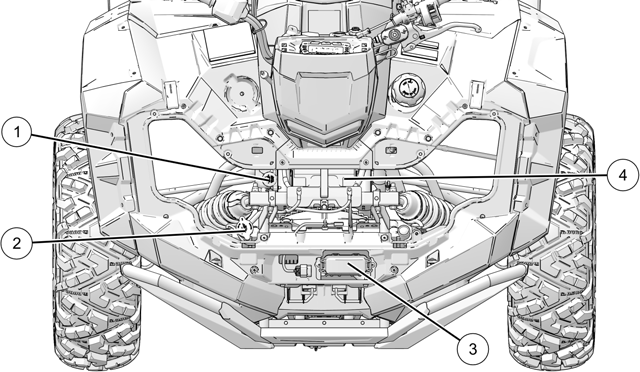
q Coolant Bottle Cap e Electrical/Fuse/Relay
w Radiator Cap r Battery
FRONT RACK
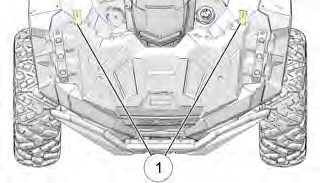 If your model is equipped with front compartment storage, unlock both latches on each side and remove the cover to gain access.
AUTOMATIC TRANSMISSION GEAR SELECTOR
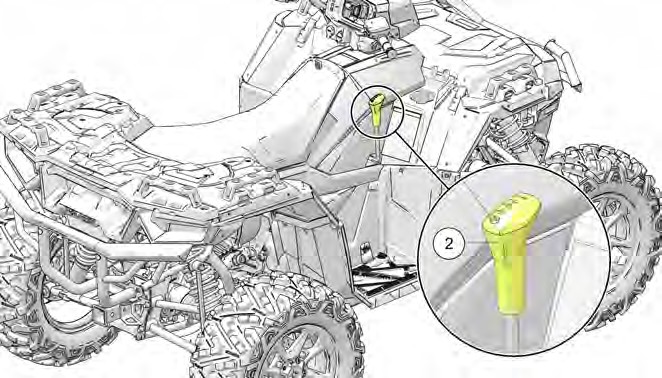
The transmission gear selector w is located on the right side of the vehicle.
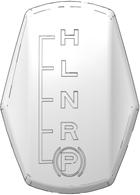 H: High Gear L: Low Gear N: Neutral R: Reverse P: Park
To shift gears, brake to a complete stop. When the engine is idling, move the lever to the desired gear.
Shifting gears with the engine speed above idle or while the vehicle is moving could cause transmission damage.
NOTICE
Whenever the ATV is left unattended, always place the transmission in PARK and lock the temporary brake lock.
To extend belt life, use low forward gear when pulling a heavy load at less than 7 mph (11 km/h) for extended periods and when operating uphill at a slow speed.
TIP
ALL WHEEL DRIVE SYSTEM
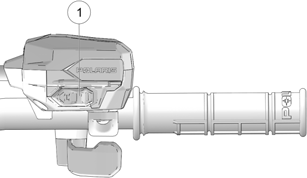 The All Wheel Drive (AWD) system is controlled by the AWD Momentary Switch q.
Engage AWD before getting into conditions where front wheel drive may be needed. If the rear wheels are spinning, release the throttle before switching to AWD.
- Push the momentary switch to the right to engage AWD mode.
- Push the momentary switch to the right twice, to engage ADC AWD mode (if equipped).
- Push the momentary switch to the left to operate in two-wheel drive (2X4) mode.
Switching to AWD or ADC AWD (if equipped) while the rear wheels are spinning may cause severe drive shaft and gearcase damage. Always switch to AWD or ADC AWD (if equipped) while the rear wheels have traction or are at rest.
NOTICE
AWD MODE
To engage AWD mode, push the momentary switch to the right. AWD will engage when engine speed slows to below 3100 RPM. The gauge will display “AWD.”
There is no limit to the length of time the vehicle may remain in AWD. The vehicle automatically engages AWD when operating in reverse if the switch is set to the AWD position.
Once enabled, AWD remains enabled until the switch is turned off. If the switch is turned off while the demand drive unit is moving, it will not disengage until the rear wheels regain traction.
When in AWD, the demand drive unit will automatically engage any time the rear wheels lose traction. When the rear wheels regain traction, the demand drive unit will automatically disengage.
2X4 MODE
To engage 2×4 Mode, push the momentary switch to the left. AWD will disengage when engine speed slows to below 3100 RPM. The gauge will display “2X4.”
ADC AWD MODE (IF EQUIPPED)
To engage ADC AWD Mode, push the momentary switch to the right twice. When the switch is on ADC AWD, the ADC system allows engine braking to all four wheels when the vehicle descends a hill or incline. Always move the AWD switch to ADC AWD before ascending or descending a hill.
ACTIVE DESCENT CONTROL (ADC) SYSTEM
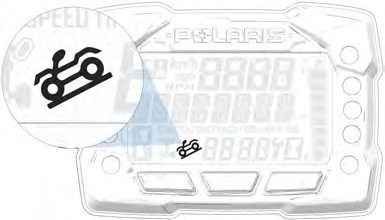 The ADC system allows engine braking to all four wheels when the vehicle descends a hill or incline. Always move the 4X4 switch to ADC 4X4 before ascending or descending a hill.
ENGAGING ACTIVE DESCENT CONTROL
The ADC system will automatically engage when all four of the following conditions occur:
- The 4X4 switch must be in the ADC 4X4 position
- Vehicle speed must be 15 MPH (25 km/h) or less
- The throttle must be closed (throttle lever released)
- The transmission must be in gear (high, low or reverse)
DISENGAGING ACTIVE DESCENT CONTROL
The ADC system will automatically disengage if at least one of the following conditions occur:
- The 4X4 switch is moved out of the ADC 4X4 position
- Vehicle speed exceeds 15 MPH (25 km/h)
- The throttle is open (throttle is applied)
- The transmission is shifted to neutral or park
INSTRUMENT CLUSTER
Features vary by model.
NOTICE
Your vehicle is equipped with one of three available gauge variants, (1) a standard gauge (no Bluetooth® functionality), (2) a Bluetooth®-equipped gauge, and (3) a no-button gauge. If your gauge is equipped with Bluetooth®, the Bluetooth® icon will briefly display in the upper right corner of the gauge at
start-up. If your model is equipped with a no-button gauge, use the MODE button on the left hand control to navigate the display menu.
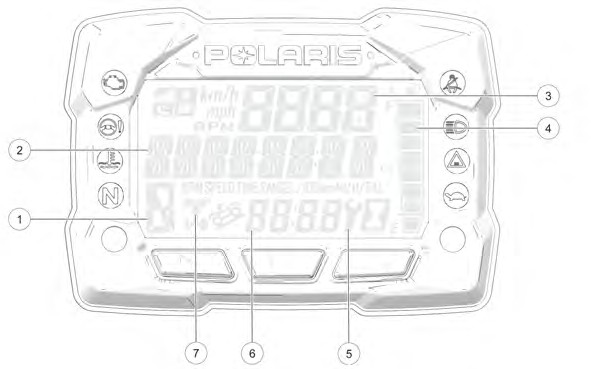
The use of a high pressure washer may damage the instrument cluster. Wash the vehicle by hand or with a garden hose using mild soap. Do not use alcohol to clean the instrument cluster. Do not allow insect sprays to contact the lens. Immediately clean off any gasoline that splashes on the instrument cluster.
NOTICE
|
DISPLAY AREA |
FUNCTION |
|
q Gear Indicator |
H = High Gear L = Low Gear N = Neutral R = Reverse Gear P = Park – = Gear Signal Error (or shifter between gears) |
|
w Display Area 2 |
This area displays odometer, trip meter, trip meter 2, voltage, engine temperature, engine hour meter, programmable service hour interval, ground speed, engine RPM, geofence status, or speed limit status. Press the mode button on the left hand control to toggle through the available options. |
|
e Display Area 1 |
This area displays engine RPM, ground speed, or coolant temperature. |
|
r Fuel Gauge |
The segments of the fuel gauge show the level of fuel in the fuel tank. When the last segment clears, a low fuel warning is activated. All segments including the fuel icon will flash. Refuel immediately. |
|
t Service Indicator |
A flashing wrench symbol alerts the operator that the preset service interval has been reached. Your POLARIS dealer can provide scheduled maintenance. See page 59 for more information. |
|
y Clock (if equipped) |
The clock displays time in a 12-hour or 24-hour format. |
|
u AWD Indicator |
Segments of the indicator illuminate based on drive mode engaged. |
INDICATOR LAMPS
|
INDICATOR |
ICON |
FUNCTION |
|
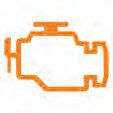
Check Engine |
|
This indicator appears if an EFI-related fault occurs. Do not operate the vehicle if this warning appears. Serious engine damage could result. Your authorized POLARIS dealer can assist. |
|
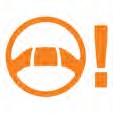
EPS Warning (if equipped) |
|
This lamp illuminates to indicate that the EPS has powered down. This occurs when the engine is OFF but the key is left in the ON position for at least 5 minutes. Cycle the key off and back on to restore function and turn off lamp. |
|
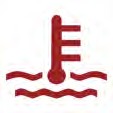
Engine Hot |
|
This lamp illuminates to indicate an overheated engine. If the indicator flashes, a severe overheating condition exists. |
|
Neutral |
|
This lamp illuminates when the transmission is in neutral and the ignition key is in the ON position. |
|
Helmet/Seat Belt |
|
This lamp flashes for several seconds when the key is turned to the ON position. The lamp is a reminder to wear helmet and seat belt (if equipped) before operating. |
|
High Beam |
|
This lamp illuminates when the headlamp switch is set to high beam. |


DISPLAY AREA 1
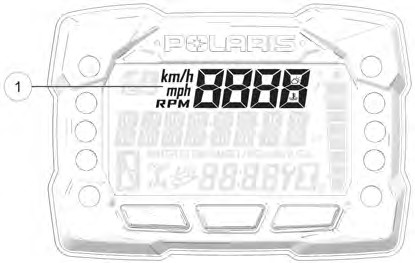 Pressing the MODE button will change the information displayed in Area 1 q.
|
DISPLAY AREA 1 |
FUNCTION |
|
Speed |
The vehicle’s speed will be displayed in mph, or km/h. |
|
Engine Temperature |
The vehicle’s current engine temperature will be displayed. |
|
RPM |
The vehicle’s RPM will be displayed. |
DISPLAY AREA 2
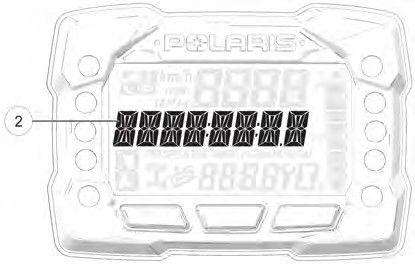 Toggle the Up/Down buttons to change the information displayed in Area 2 w.
|
DISPLAY AREA 2 |
FUNCTION |
|
Odometer |
The vehicle’s odometer reading will be displayed. |
|
Engine Temperature |
The vehicle Engine Temperature will be displayed. |
|
Trip 1 |
The vehicle Trip 1 mileage will be displayed. |
|
Trip 2 |
The vehicle Trip 2 mileage will be displayed. |
|
RPM |
The vehicle RPM will be displayed. |
|
Voltage |
The vehicle’s current battery voltage will be displayed. |
|
Speed |
The vehicle’s current speed will be displayed. |
|
Engine Hours |
The vehicle’s engine hours will be displayed. |
|
Service Hours |
The vehicle’s service hours will be displayed. |
OPTIONS MENU
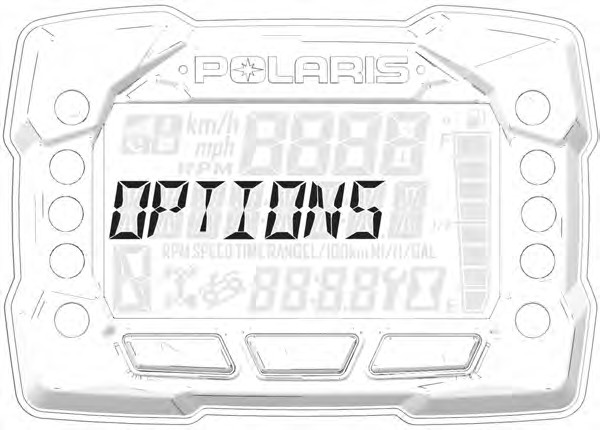
Press and hold the MODE button to enter the Options Menu.
|
OPTIONS MENU |
NOTES |
|
Diagnostic Codes |
Only displays if fault codes are present or stored |
|
Units – Distance |
Select MPH or KPH |
|
Units – Temp |
Select between °F and °C |
|
Clock |
Select between 12H or 24H, and set time |
|
Backlight Color |
Select between Blue or Red |
|
Backlight Level |
Set backlight brightness level |
|
Service Hours |
View/Set Service hours |
|
Bluetooth® Pairing (if equipped) |
Pair Bluetooth® device |
|
Electronic Power Steering (EPS) |
Set EPS mode at high, medium, or low |
|
Exit Menu |
Exit |
DIAGNOSTIC CODE
Diagnostic Code Screen will show available MIL that has come on during that ignition cycle.
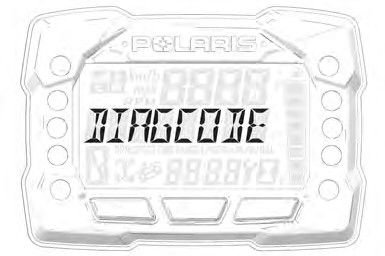 To access the Diagnostic Code Screen, do the following:
- Press and hold the MODE button to enter the Options Menu. “OPTIONS” will display on the screen for 3 seconds before showing first menu item.
- Select “Diagnostic Codes” from the Options Menu by pressing the MODE button.
Toggle the Up/Down Buttons to cycle through Code(s).
This option will only be available if a fault code was set or is active during the current ignition key ‘on’ cycle. Turning off the ignition will clear any save fault codes from the gauge.
NOTICE
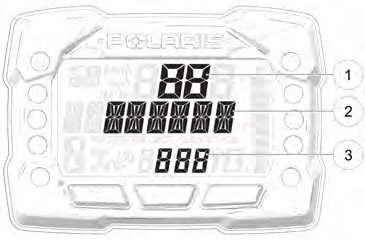 q Display area 1 will show FMI w Display area 2 will show SPN e Clock Area will show Count.
When the gauge is displaying a fault code, the warning telltale (check engine or EPS) will blink to indicate which controller set the fault code.
NOTICE
- To exit the Options Menu the user can select Exit Menu function from Options Menu, can hold Mode Button and exit out of Options Menu, or not press any button for 10 seconds, which will exit out of the Options Menu.
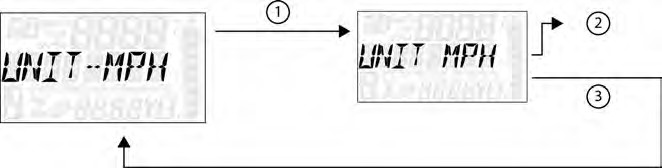 UNIT SELECTION DISTANCE
- Press and hold the MODE button to enter the Options Menu.
“OPTIONS” will display on the screen for 3 seconds before showing first menu item.
NOTICE
- Select “Units-Distance” from the Options Menu by pressing the MODE button.
Reference the image shown above:
q Press the MODE button.
w Toggle the Up/Down Buttons to change the units (MPH or KPH)
e With the correct unit displayed, Press the mode button which will set the unit and return to the Options Menu.
- To exit the Options Menu the user can select Exit Menu function from Options Menu, can hold Mode Button and exit out of Options Menu, or not press any button for 10 seconds, which will exit out of the Options Menu.
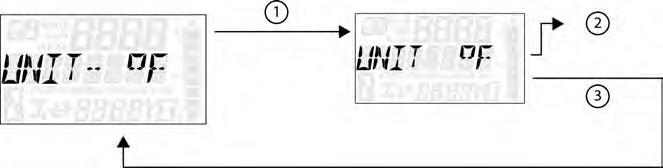 UNIT SELECTION TEMPERATURE
-
- Press and hold the MODE button to enter the Options Menu.
“OPTIONS” will display on the screen for 3 seconds before showing first menu item.
NOTICE
-
- Select “Units – Temp” from the Options Menu by pressing the MODE button. Reference the image shown above:
q Press the MODE button.
w Toggle the Up/Down Buttons to change the units (°F or °C)
e With the correct unit displayed, Press the mode button which will set the unit and return to the Options Menu.
-
- To exit the Options Menu the user can select Exit Menu function from Options Menu, can hold Mode Button and exit out of Options Menu, or not press any button for 10 seconds, which will exit out of the Options Menu.
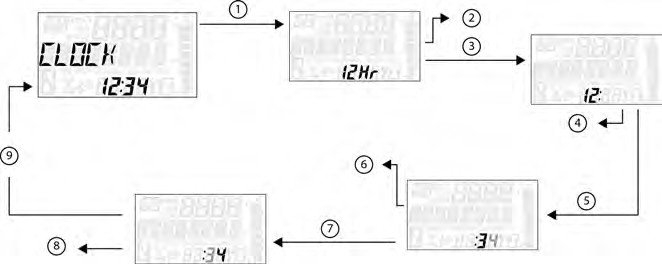 CLOCK (IF EQUIPPED)
- Press and hold the MODE button to enter the Options Menu.
“OPTIONS” will display on the screen for 3 seconds before showing first menu item.
NOTICE
- Select “Clock” from the Options Menu by pressing the MODE button. Reference the image shown above:
q Press the MODE button.
w Toggle the Up/Down Buttons to change the units (12H or 24H)
e With the correct unit displayed, Press the mode button which will set the unit.
r Toggle the Up/Down Buttons to change the units (Cycles Hours)
t With the correct unit displayed, Press the mode button which will set the unit.
y Toggle the Up/Down Buttons to change the units (Cycles 10s of Minutes)
u With the correct unit displayed, Press the mode button which will set the unit.
i Toggle the Up/Down Buttons to change the units (Cycles 1s of Minutes)
o With the correct unit displayed. Press the mode button which will set the unit and return to the Options menu.
- To exit the Options Menu the user can select Exit Menu function from Options Menu, can hold Mode Button and exit out of Options Menu, or not press any button for 10 seconds, which will exit out of the Options Menu.
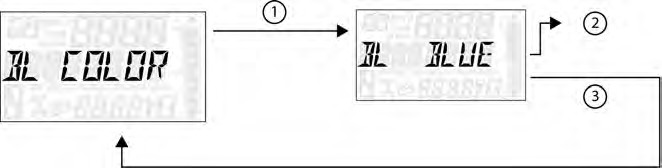 BACK LIGHT COLOR
-
- Press and hold the MODE button to enter the Options Menu.
“OPTIONS” will display on the screen for 3 seconds before showing first menu item.
NOTICE
-
- Select “Backlight Color” from the Options Menu by pressing the MODE button.
Reference the image shown above:
q Press the MODE button.
w Toggle the Up/Down Buttons to change the units (Blue or Red)
e With the correct unit displayed, Press the MODE button which will set the unit and return to the Options Menu.
-
- To exit the Options Menu the user can select Exit Menu function from Options Menu, can hold MODE Button and exit out of Options Menu, or not press any button for 10 seconds, which will exit out of the Options Menu.
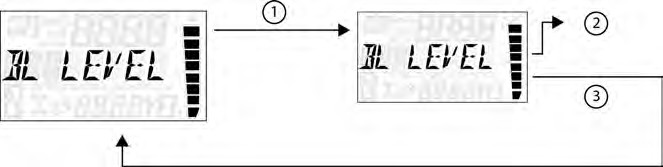 BACK LIGHT LEVEL
- Press and hold the MODE button to enter the Options Menu.
“OPTIONS” will display on the screen for 3 seconds before showing first menu item.
NOTICE
- Select “Backlight Level” from the Options Menu by pressing the MODE button.
Reference the image shown above:
q Press the MODE button.
w Toggle the Up/Down Buttons to change the units (Increase or De- crease Level)
e With the correct unit displayed, Press the MODE button which will set the unit and return to the Options Menu.
- To exit the Options Menu the user can select Exit Menu function from Options Menu, can hold MODE Button and exit out of Options Menu, or not press any button for 10 seconds, which will exit out of the Options Menu.
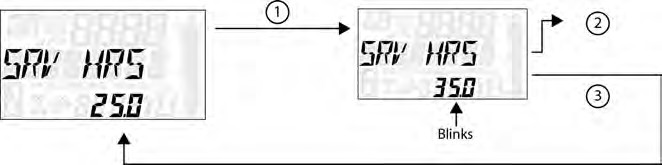 SERVICE HOURS
-
- Press and hold the MODE button to enter the Options Menu.
“OPTIONS” will display on the screen for 3 seconds before showing first menu item.
NOTICE
-
- Select “Service Hours” from the Options Menu by pressing the MODE button. Reference the image shown above:
q Press the MODE button.
w Toggle the Up/Down Buttons to change the units (0, 5, 10 – 95, 100)
e With the correct unit displayed, press the MODE button, which will set the unit and return you to the Options Menu.
To reset service hours after they have counted down to “0.0”, reselect the existing setpoint or select a new service hour value.
NOTICE
-
- To exit the Options Menu the user can select Exit Menu function from Options Menu, can hold MODE Button and exit out of Options Menu, or not press any button for 10 seconds, which will exit out of the Options Menu.
BLUETOOTH® (IF EQUIPPED)
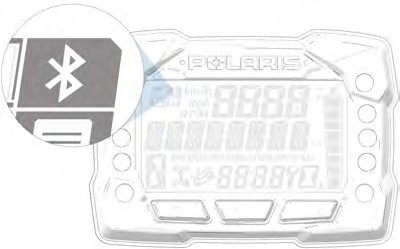 The Bluetooth® functionality allows users to pair their phones with the vehicle’s digital gauge. This function allows users to receive call and text alerts while operating the vehicle.
If a text message is received while the vehicle is moving faster than 2 KPH, only the sender’s name is shown onscreen.
If you are browsing any of the Bluetooth® menus and the vehicle starts to move faster than 2 KPH, the menu will automatically display VEHICLE MOVING. If you attempt to access Bluetooth® menus while the vehicle is moving faster than 2 KPH, the screen will display VEHICLE MOVING momentarily, and then it will redirect to the options menu.
PAIRING YOUR PHONE TO THE GAUGE
Use the following procedure to pair your phone with the vehicle’s digital gauge.
Bluetooth® functionality is compatible with both iOS® and Android® phones. For iOS® phones, you must go to the Settings option and enable notifications.
Most Android® phones will prompt the user automatically to enable notifications as part of the pairing process.
NOTICE
- Make sure Bluetooth® is enabled on your phone.
- Access the options menu on the vehicle’s digital gauge and select BT PAIR. The Bluetooth® icon will begin to blink.
- Find and select Polaris Gauge on your phone’s Bluetooth® menu or prompt. Pairing should occur momentarily. Pairing mode will continue for up to 90 seconds or if you exit the BT PAIR menu.
After successfully pairing the phone, the vehicle’s digital gauge will automatically reconnect with the phone each time it is powered on and within range. No further action is required by the user at this point.